

Cluster architecture
Each Virtual GPU cluster consists of one or more virtual machine nodes. All nodes are created from an identical template (image, network settings, disk configuration). After creation, individual nodes can have their disk and network configurations modified independently. For flavors with InfiniBand support, high-speed inter-node networking is configured automatically. This enables efficient distributed training across multiple nodes without manual network configuration. Each node has:- A network boot disk (required). At least one network disk is required as the boot volume for the operating system.
- A local data disk added by default. This non-replicated disk is dedicated to temporary storage.
- Optional network data disks that can be attached during creation or added later. Network disks persist independently of node state.
- Optional Vast fileshare integration for shared storage across nodes.
Create a Virtual GPU cluster
To create a Virtual GPU cluster, complete the following steps in the Gcore Customer Portal.- In the Gcore Customer Portal, navigate to GPU Cloud.
- In the sidebar, expand GPU Clusters and select Virtual Clusters.
- Click Create Cluster.
Step 1. Select region
In the Region section, select the data center location for the cluster. Regions are grouped by geography (Asia-Pacific, EMEA). Each region card shows its availability status.GPU model availability and pricing vary by region. Check other regions if a required GPU model is not available. For help with availability, contact the sales team.
Step 2. Select cluster type
In the Cluster type section, select Virtual to create a Virtual GPU cluster. Selecting Virtual displays flavors and options specific to Virtual GPU clusters. Selecting Physical switches to Bare Metal GPU cluster creation.Step 3. Configure cluster capacity
Cluster capacity determines the hardware specifications for each node in the cluster.- Select the GPU Model. Available models depend on the region.
- Enable or disable Show out of stock to filter available flavors.
- Select a flavor. Each flavor card displays GPU configuration, vCPU count, RAM capacity, and pricing.
Step 4. Set the number of nodes
In the Number of Nodes section, specify how many virtual machines to provision in the cluster.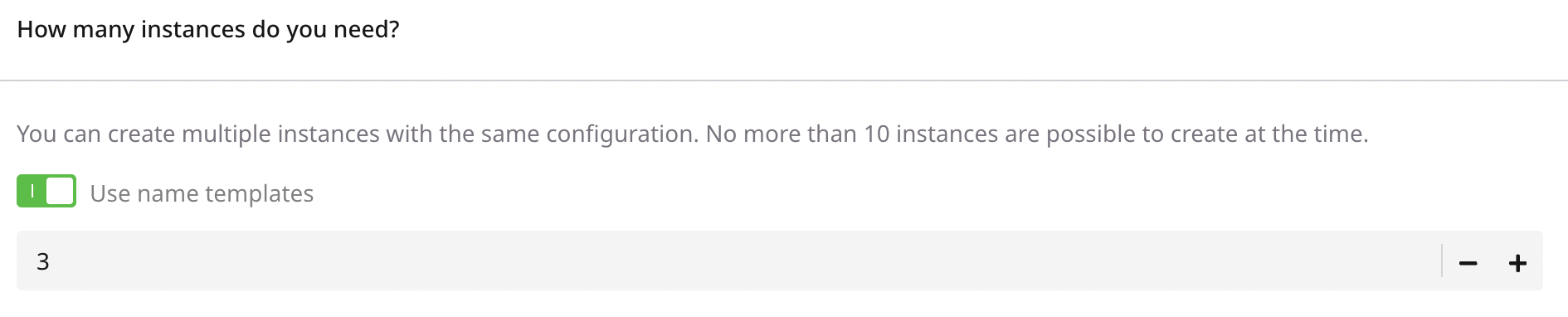
Step 5. Select image
The image defines the operating system and pre-installed software for cluster nodes.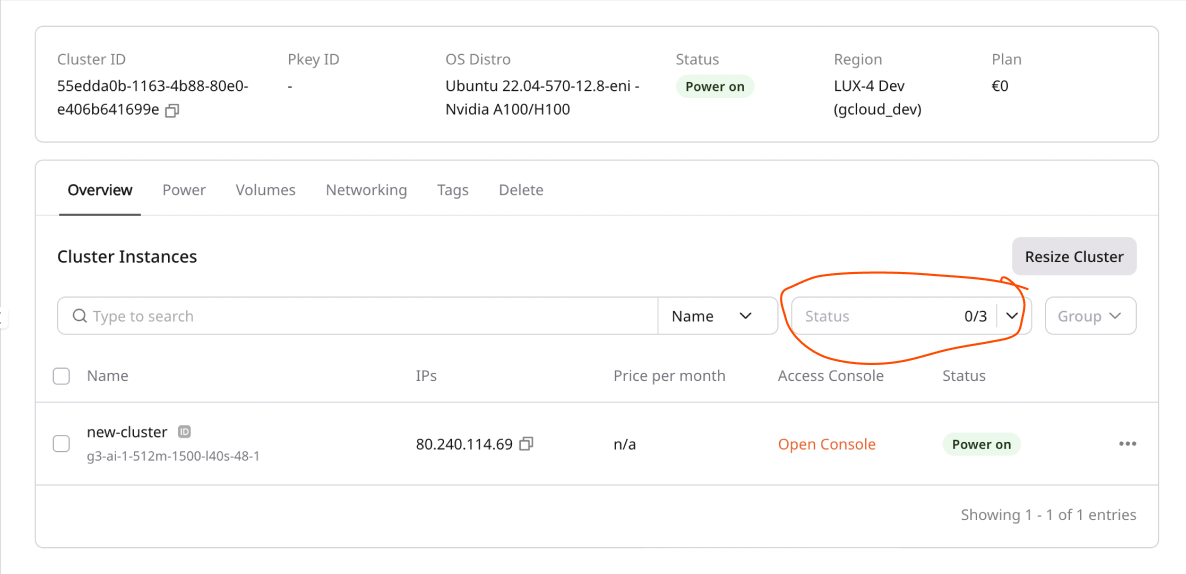
- In the Image section, choose the operating system:
- Public: Pre-configured images with NVIDIA drivers and CUDA toolkit
- Custom: Custom images uploaded to the account
eni suffix in the name are configured for InfiniBand interconnect.
- Note the default login credentials displayed below the image selector.
Step 6. Configure disks
Each Virtual GPU cluster node has the following storage:- Network boot disk (required): At least one network disk is required as the boot volume for the operating system. This disk persists across power cycles.
- Local data disk: Added automatically to every node. This non-replicated disk is dedicated to temporary storage only. It cannot be edited, removed, or used as a boot volume. Data on this disk is deleted when the node is shelved, reconfigured, or deleted.
- Network data disks (optional): Additional persistent storage that survives power cycles. Up to 8 network disks of different sizes and types can be attached.
- Vast fileshare (optional): Shared storage integration for data accessible across multiple nodes.
-
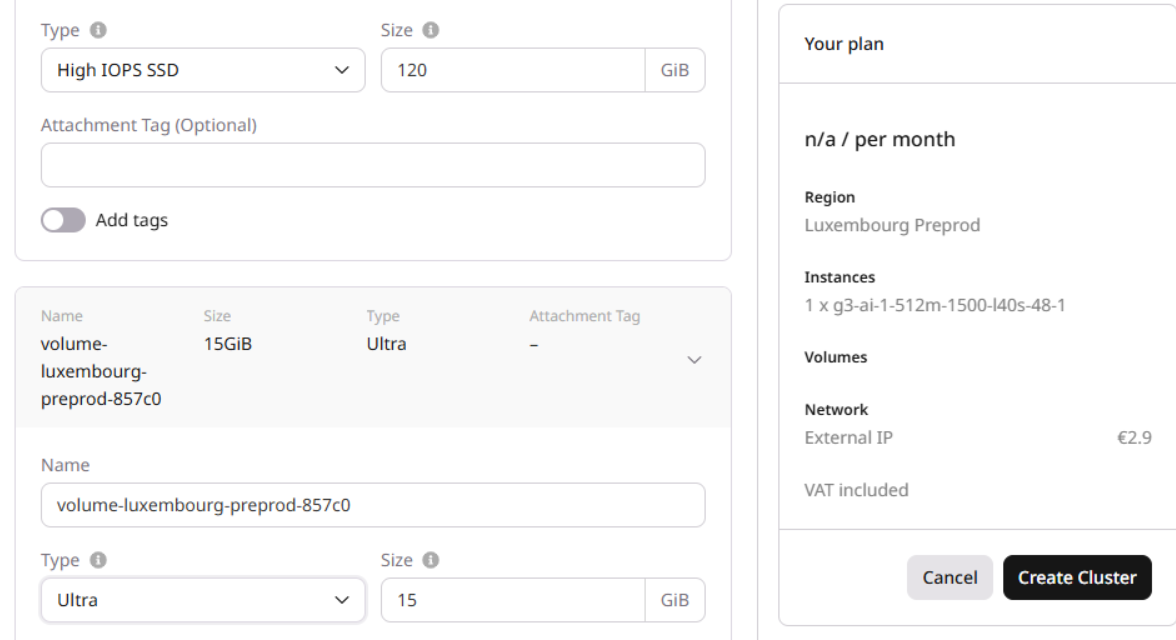
Configure the boot disk:
- Disk type: Select from available storage types in the region
- Size: Minimum size depends on the selected image
- To add additional network data disks, click Add Disk.
-
For each additional disk, select:
- Disk type: Select from available storage types in the region
- Size: Minimum 120 GiB
- Repeat to add more disks (maximum 8 disks total).
After cluster creation, network disks can be managed individually per node. Additional disks can be added to specific nodes, and existing disks can be detached from individual nodes.
Step 7. Configure network settings
Network settings define how the cluster communicates with external services and other resources. At least one interface is required.- In the Network settings section, configure the network interface:
| Type | Access | Use case |
|---|---|---|
| Public | Direct internet access with dynamic public IP | Development, testing, quick access to cluster |
| Private | Internal network only, no external access | Production workloads, security-sensitive environments |
| Dedicated public | Reserved static public IP | Production APIs, services requiring stable endpoints |
Step 8. Configure SSH key
In the SSH key section, select an existing key from the dropdown or create a new one. Keys can be uploaded or generated directly in the portal.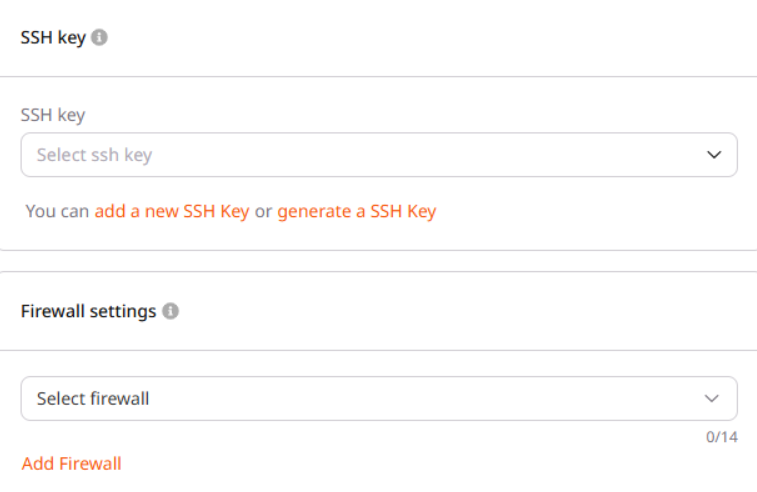
Step 9. Set additional options
The Additional options section provides optional settings: user data scripts for automated configuration and metadata tags for resource organization.Step 10. Name and create the cluster
The final step assigns a name to the cluster and initiates provisioning.- In the Cluster Name section, enter a name or use the auto-generated one.
- Review the Estimated cost panel on the right.
- Click Create Cluster.
Connect to the cluster
After the cluster is created, use SSH to access the nodes. The default username isubuntu.
<node-ip-address> with the public or floating IP shown in the cluster details.
For nodes with only private interfaces, connect through a bastion host or VPN, or use the Gcore Customer Portal console.
Verify cluster status
After connecting, verify that GPUs are available and drivers are loaded:Manage cluster power state
Virtual GPU clusters support power management operations at the cluster level. Unlike Bare Metal clusters, powering off a Virtual GPU cluster releases compute resources (shelving), which stops billing but also removes data from local disks.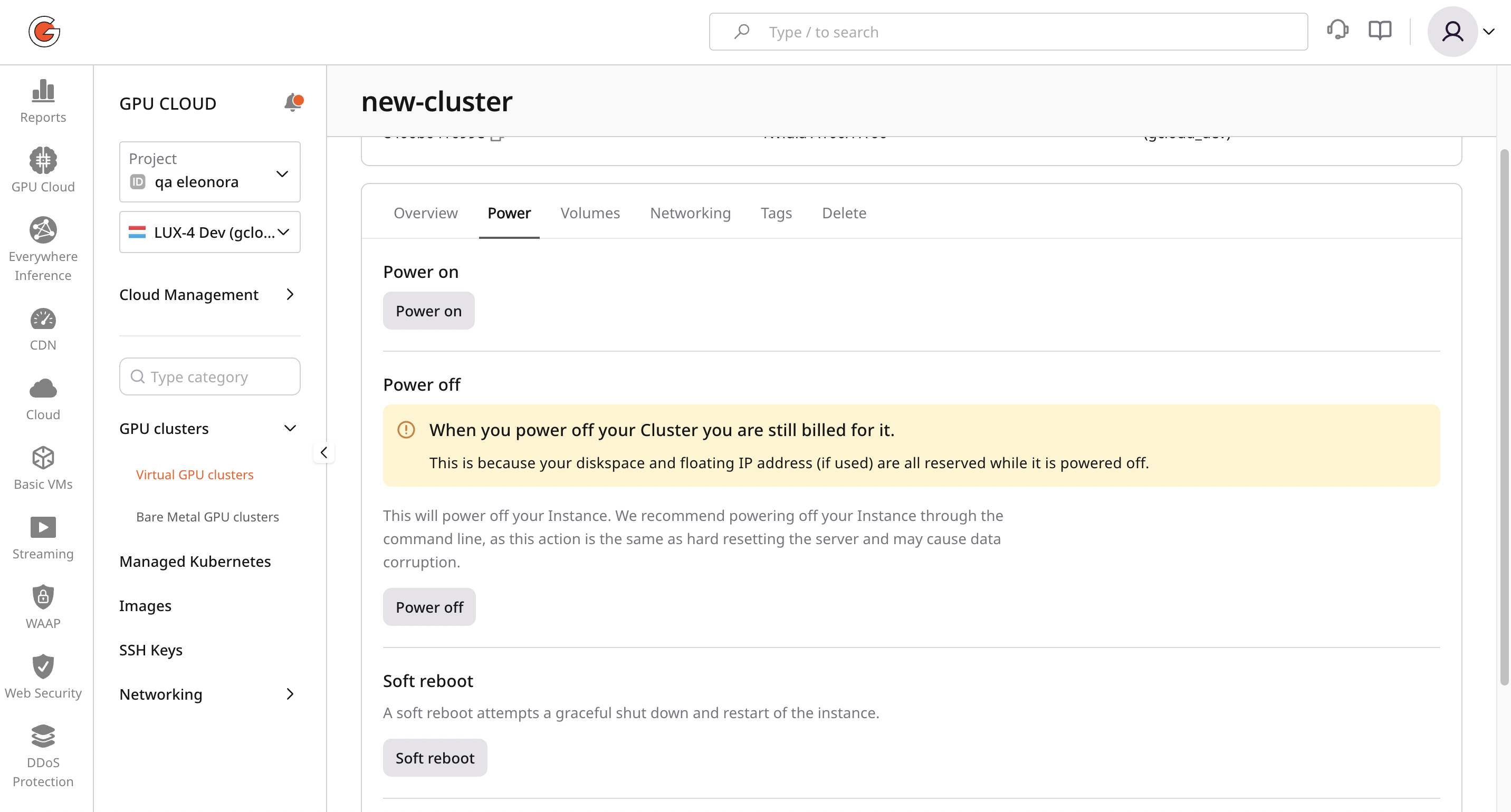
Power off (shelve) a cluster
Powering off a Virtual GPU cluster shelves all nodes. Shelving releases CPU, RAM, GPU, and local disk resources. No charges apply while nodes are shelved.- In the cluster list or cluster details page, locate the cluster.
- Click the Power Off action.
- Confirm the operation.
Power on a cluster
Powering on a shelved cluster attempts to allocate resources for all nodes.- In the cluster list or cluster details page, locate the powered-off cluster.
- Click the Power On action.
Change cluster flavor
Virtual GPU clusters support changing the flavor after creation, allowing adjustment of GPU, CPU, and RAM allocation without recreating the cluster. This is not available for Bare Metal clusters.- Power off (shelve) the cluster. Flavor changes require the cluster to be in shelved state.
- In the cluster details page, click Change Flavor.
- Select the new flavor from available options.
- Confirm the change.
- Power on the cluster.
Flavor availability depends on the region and current capacity. If the desired flavor is not available, the change cannot be applied.
Manage node disks
After cluster creation, disks can be managed individually for each node. This allows adding storage to specific nodes or removing unused disks.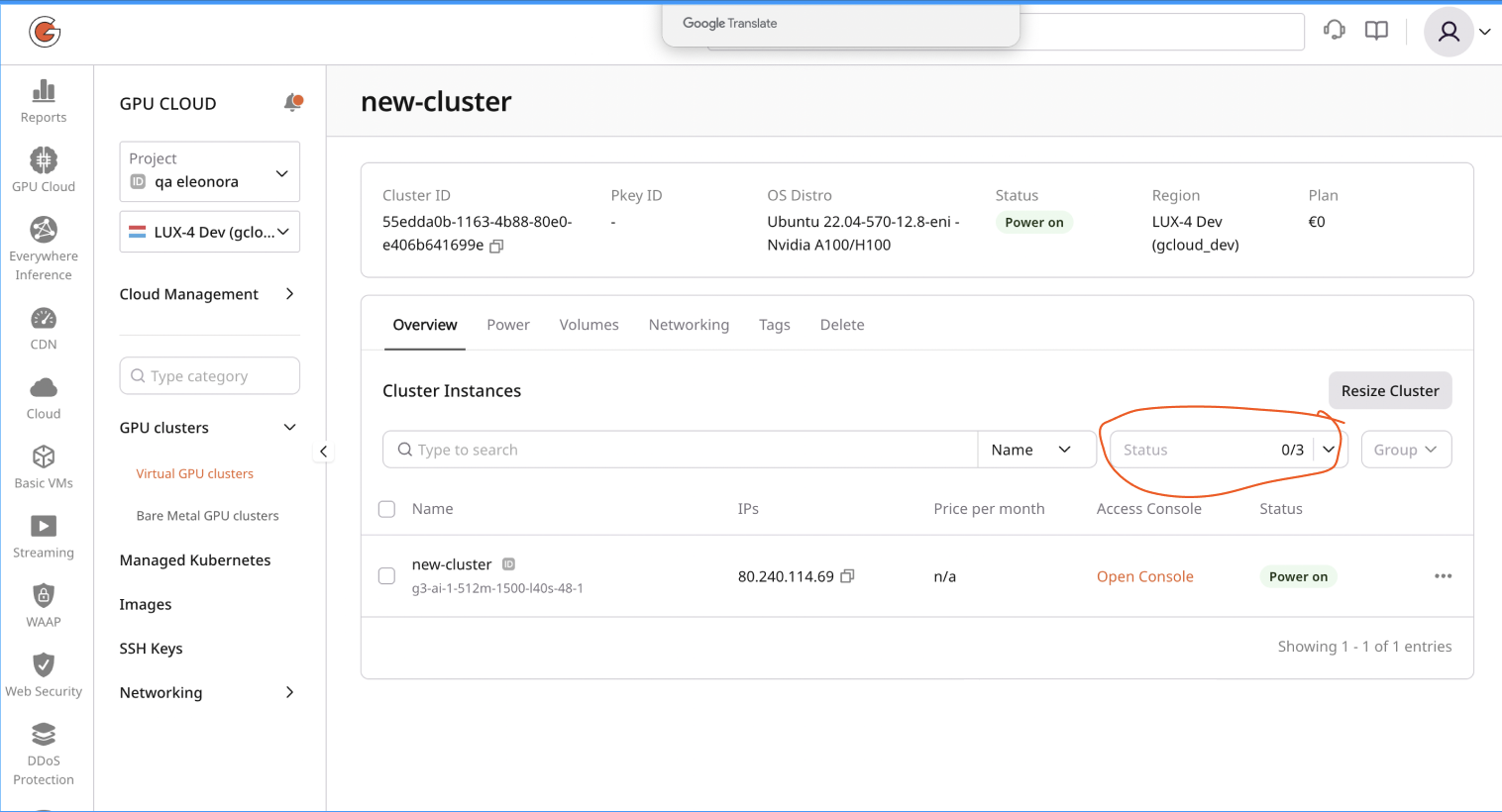
Add a disk to a node
- Navigate to the cluster details page.
- Open the Volumes tab.
- Select the node to attach a disk to.
- Click Add Volume and configure the disk type and size.
- Click Create to attach the new disk.
Remove a disk from a node
- Navigate to the cluster details page.
- Open the Volumes tab.
- Locate the disk to remove and click the detach action.
- Confirm the operation.
Delete a cluster
When deleting a Virtual GPU cluster, disks attached to nodes can optionally be preserved.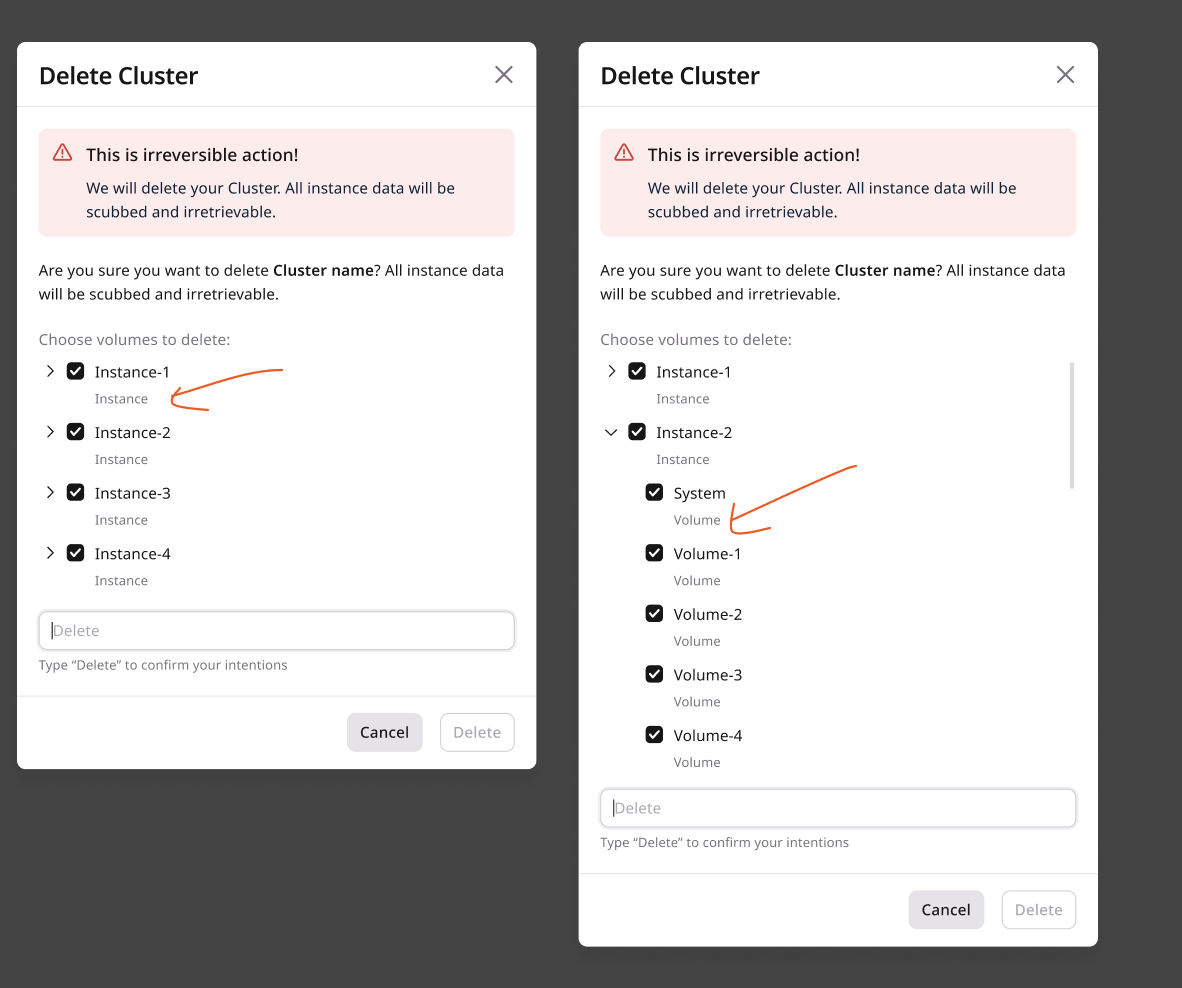
- In the cluster list or cluster details page, click Delete.
- In the confirmation dialog:
- To delete all disks along with the cluster, leave the Delete disks checkbox selected.
- To preserve disks for later use, clear the Delete disks checkbox.
- Confirm the deletion.
Preserved disks remain in the account and continue to incur storage charges. They can be attached to other instances or clusters.
Automating cluster management
The Gcore Customer Portal is suitable for creating and managing individual clusters. For automated workflows—such as CI/CD pipelines, infrastructure-as-code, or batch provisioning—use the GPU Virtual API. The API allows:- Creating and deleting clusters programmatically
- Starting, stopping, and rebooting clusters
- Changing cluster flavor
- Managing volumes attached to cluster servers
- Querying available GPU flavors and regions